
Enhance photo quality
Improve sharpness, fix exposure, reduce noise, and bring out detail from underexposed, blurry, or low-quality photos.
Remove objects, change photo style, restore old images, and clean marks from your own photos. Describe the edit you need and the AI handles it. No design skills or app downloads required.
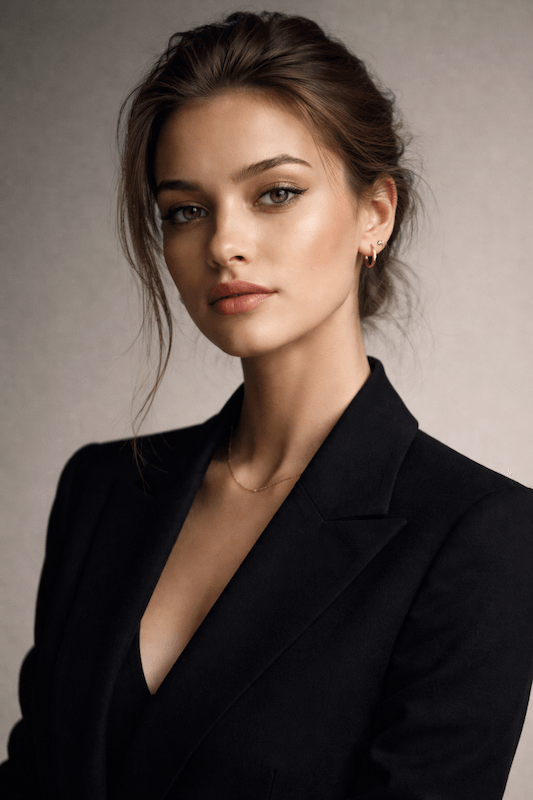
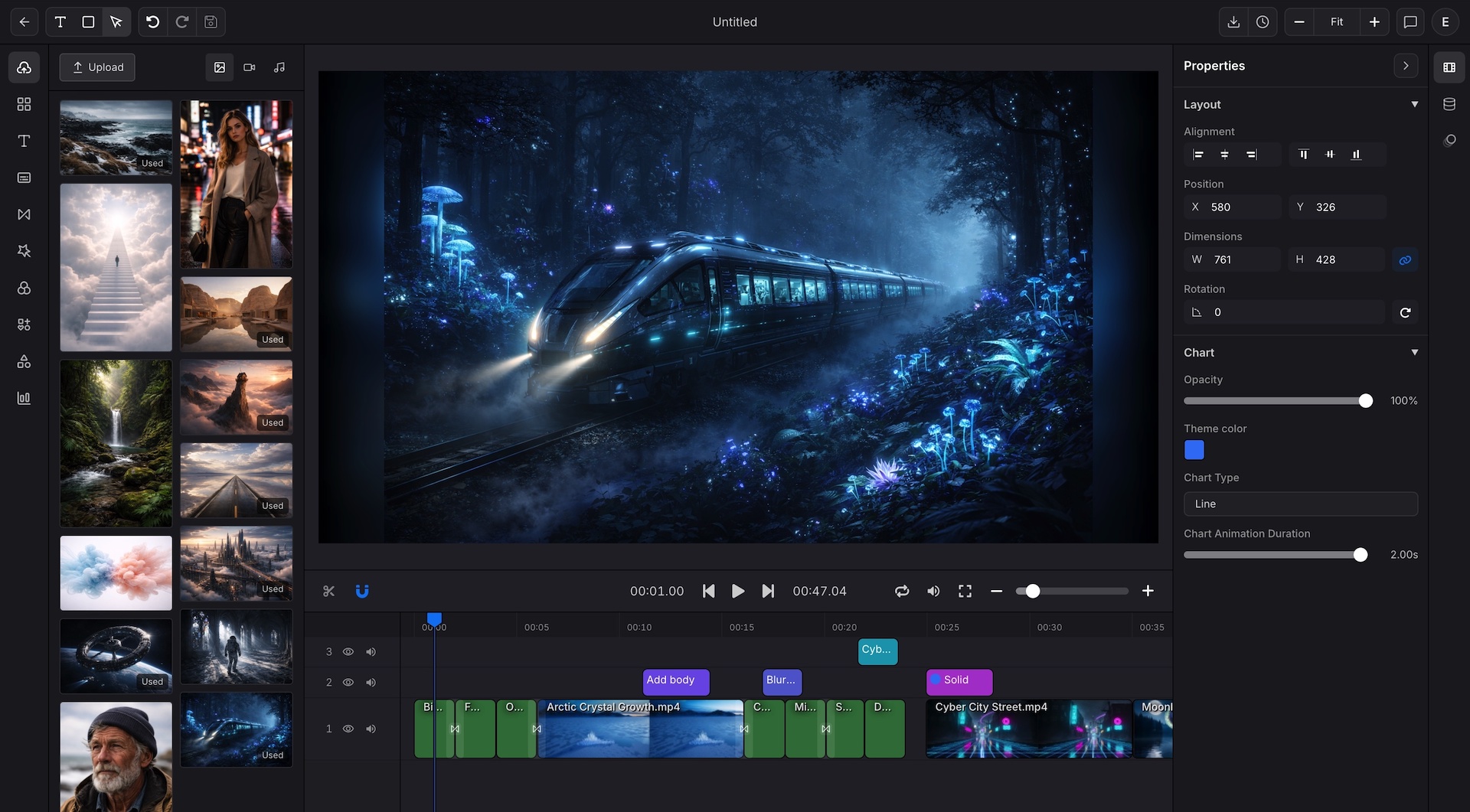
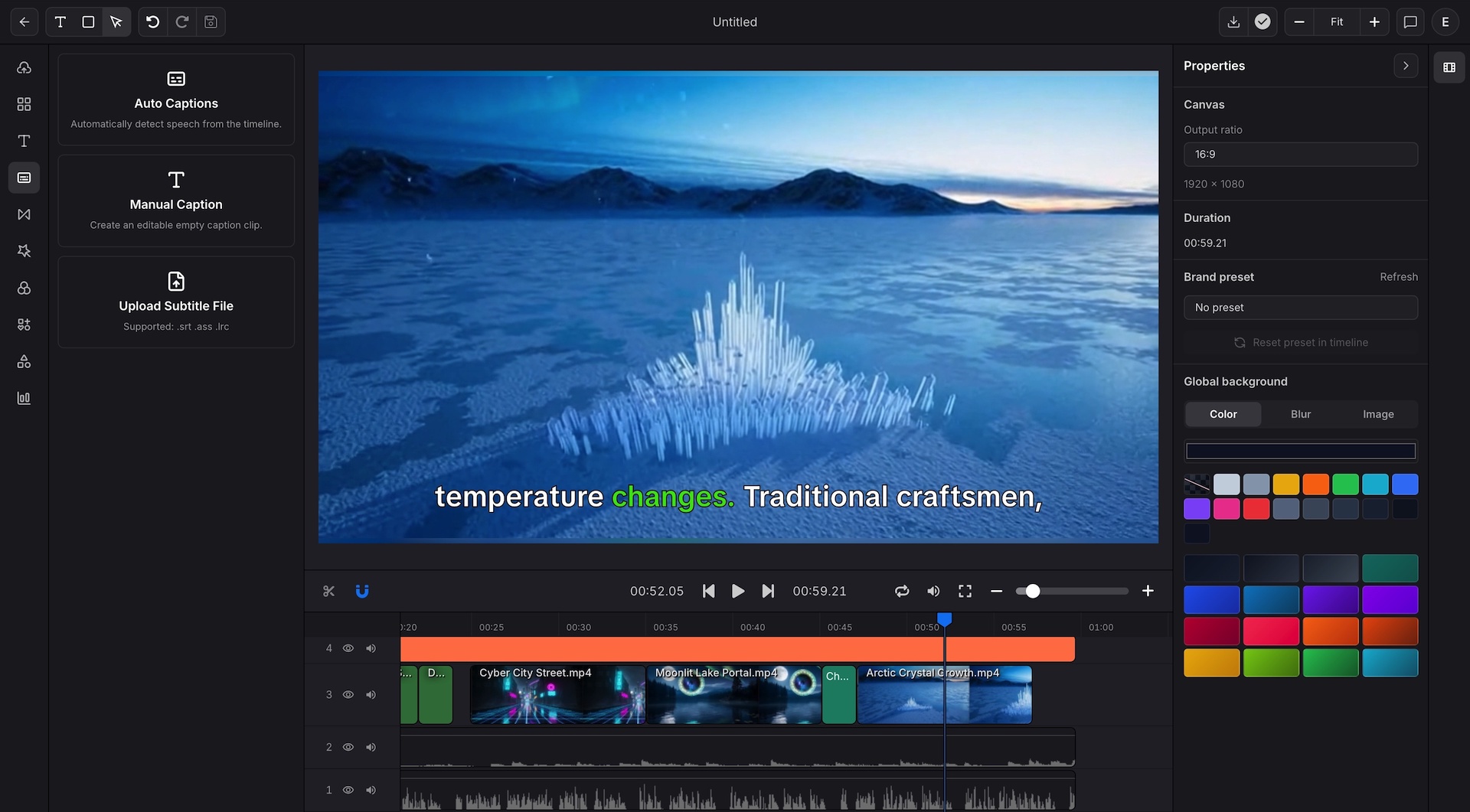
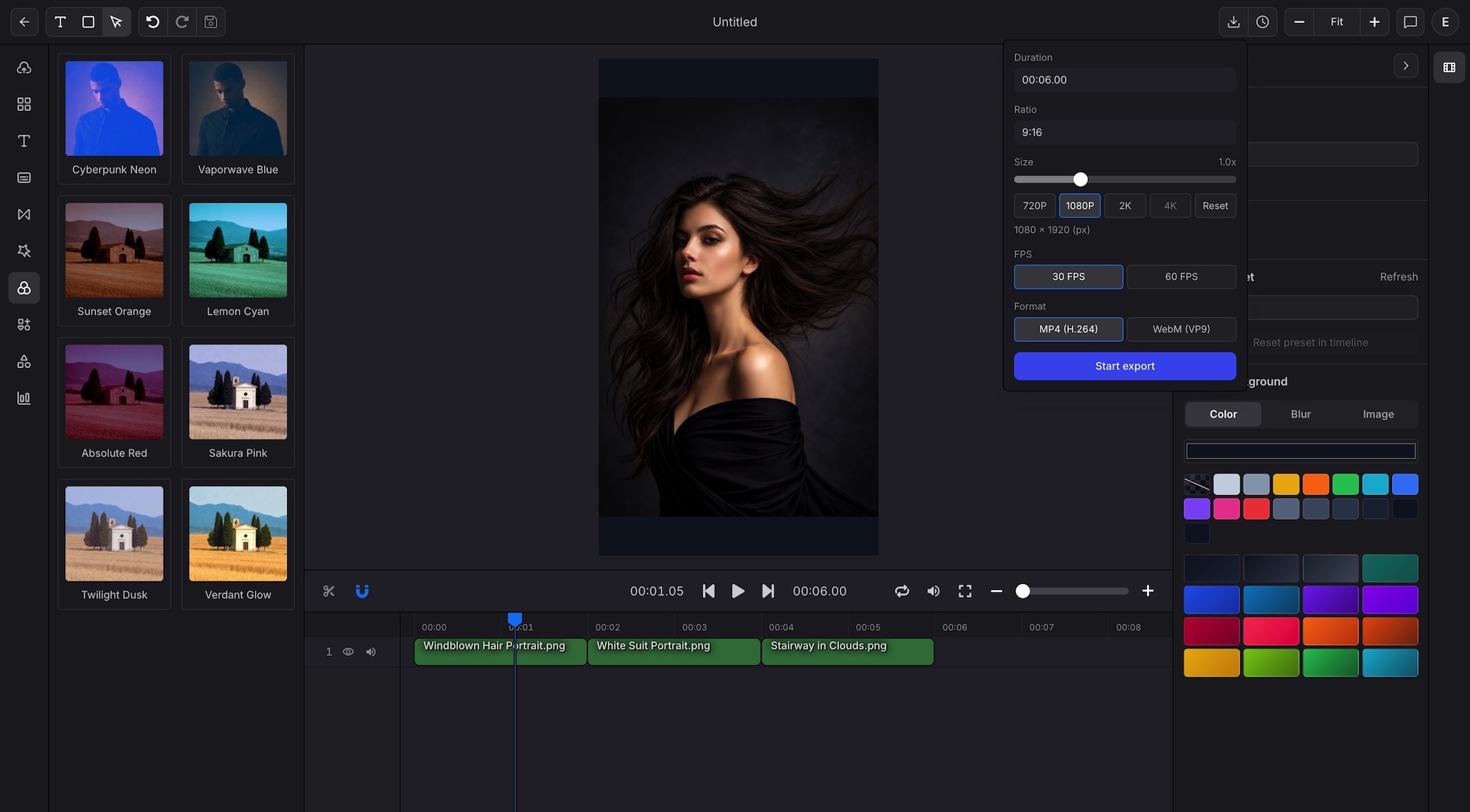
Edit photos directly in the browser without installing software or needing design experience. Handle style changes, object removal, background cleanup, old photo restoration, multi-image blending, and mark removal. Export clean results or move the finished photo into the video editor.
Best for
Creators restyling portraits, posts, thumbnails, and social visuals
Ecommerce sellers cleaning product photos, removing clutter, and keeping catalog images consistent
Families and archivists restoring faded or scratched photos before sharing or printing
Marketers blending reference images into campaign visuals and branded assets
Photo editing, enhancement, cleanup, restoration, and motion export handled in one browser workspace. No tool switching or software installation needed.
Improve sharpness, fix exposure, reduce noise, and bring out detail from underexposed, blurry, or low-quality photos.
Increase image resolution up to 4x and recover fine detail from small, compressed, or low-resolution source files.
Clean up skin, reduce harsh shadows, and refine portraits for profiles, headshots, and social visuals.
Restyle a photo for product, social, editorial, illustration, or campaign use by describing the look you want.
Fill removed areas naturally or extend the frame beyond its original edges to fit a new crop or composition.
Combine a product, background, subject, and style direction from several reference images into one result.
Separate subjects from backgrounds cleanly and erase distracting objects, date stamps, or stray marks from photos you own.
Remove watermarks, stickers, labels, date stamps, and unwanted text from images you own or are permitted to edit.
Repair faded, scratched, or discolored images so family photos and archive prints are clear enough to share or print.
Restyle a photo for social posts, product concepts, avatars, editorial visuals, or campaign tests while keeping the original image direction easy to compare.
Style transform
Use AI Photo Editor style transformation when the subject is right but the look needs to change. Describe the new direction you want: warmer portrait tones, cleaner product styling, an illustration look, or a campaign aesthetic. The AI transforms the photo while keeping the original to compare.
Explore new styles while preserving the core subject
Compare visual directions before committing to an edit
Prepare thumbnails, social visuals, product concepts, and branded assets
Clean distracting objects, background clutter, stray people, props, stickers, or marks so the photo can work in a product page, post, ad, profile, or presentation.
Object cleanup
Use the AI Photo Editor object remover when the composition is strong but one detail pulls attention away. Remove the unwanted element, review the result, and keep the cleaned photo ready for layout or export.
Remove background clutter, small objects, and visual distractions
Clean ecommerce, travel, portrait, real estate, and campaign images
Keep the useful photo instead of reshooting or redesigning it
Repair faded, scratched, discolored, or damaged photos so family images, archive scans, and historical prints are clear enough to share, print, or store.
Old photo restoration
Use AI Photo Editor restoration when a photo needs cleanup before it can be printed, shared, archived, or included in a story. Improve clarity, reduce visible damage, and prepare a cleaner version for the next use.
Improve faded, scratched, or low-clarity photos
Prepare old family images and archive visuals for sharing
Keep restoration focused on readability instead of a generic filter
Use more than one reference when a single photo does not contain everything: a product, subject, background, outfit, color direction, or mood.
Image fusion
Use multi-image fusion in AI Photo Editor when the final visual needs details from several sources. Blend references into a unified image direction before exporting or continuing into a campaign asset.
Blend product, background, subject, and style references
Create campaign concepts from several approved visual inputs
Reduce manual compositing when references already exist
Clean date stamps, stickers, labels, watermarks, or stray text from product, event, archive, or campaign photos that you own or are allowed to edit.
Clean marks
Use AI Photo Editor cleanup when a useful image has a date stamp, sticker, label, watermark, or stray text in the wrong place. Remove the mark and prepare a cleaner version for your next post, listing, presentation, or archive.
Clean date stamps, stickers, text, or watermarks from your own images
Prepare catalog, archive, event, or campaign photos for reuse
Recover a usable image without recreating the asset from scratch
After the photo is cleaned, restored, or restyled, bring it into the video editor for posts, ads, product stories, or presentations that need motion.
Photo to video
Use the video editor when a finished image needs timing, captions, narration, product callouts, or channel-specific exports. Keep the edited photo as the visual starting point and build the motion version from there.
Place edited photos on a multi-track timeline when motion is needed
Add captions, TTS, product callouts, or brand details after image approval
Export social, ad, presentation, or transparent WebM versions
Upload the image, choose the edit that fits the job, review the result, then export a polished version for the channel.
Open the AI Photo Editor, upload your photo, and describe the edit you need: remove an object, change the style, fix old damage, blend references, or clean a mark. No design skills required.
Compare the AI result with the original, keep the version that fits the goal, then make smaller cleanup, crop, brand, or export decisions before delivery.
Export a polished image for social, product pages, ads, presentations, or archives. When a channel needs motion, turn the edited photo into a video version.
Quick answers about editing, cleaning, restoring, blending, exporting, and turning finished photos into motion content.
Use the AI Photo Editor to restyle, clean, restore, blend, and export better images from one browser workspace.
Generate fresh visuals first, then use AI Photo Editor style and cleanup tools on approved images.
Jump straight into image background removal when cleanup is the first task.
Move approved photos into the browser editor when the final channel needs motion, captions, or audio.