Model choice slows down the first step
Teams compare Veo, Kling, Sora, Seedance, Runway, and more, but a single model tool forces each job into one lane even when the task needs something else.
Use Indream as your AI Video Generator for Veo, Kling, Sora, Seedance, Runway, and more, then keep working in the built in editor for captions, brand control, and export.
32 video models. Text, image, and video inputs. Built in editor included.


The hard part is rarely one prompt. The hard part is choosing the right model, finishing the edit, and shipping without rebuilding the workflow every time.
Teams compare Veo, Kling, Sora, Seedance, Runway, and more, but a single model tool forces each job into one lane even when the task needs something else.
Generation often happens in one place while captions, trimming, and packaging happen in another tool, which turns a quick test into a longer workflow.
A strong first result still needs subtitle cleanup, text, timing, effects, and export settings before the video is ready to publish.
Logos, colors, intros, and outros drift when each project starts from a slightly different process or export setup.
Teams need more than one preset because campaign placements, social formats, and transparent overlays all demand different output settings.
Once a format works, the next question is how to turn it into a reusable template instead of rebuilding scenes from zero for every run.
This AI Video Generator brings model access, generation review, editing, brand control, and export into one closed loop so Indream can take a project from prompt to delivery in the same workspace.
Best for
Creators who need one AI Video Generator for shorts, promos, tutorials, and explainers
Marketing teams that need model choice plus brand safe finishing in one workflow
Analysts who want chart scenes, captions, and export control after generation
Developers who need a visual starting point before moving into editor JSON and API delivery
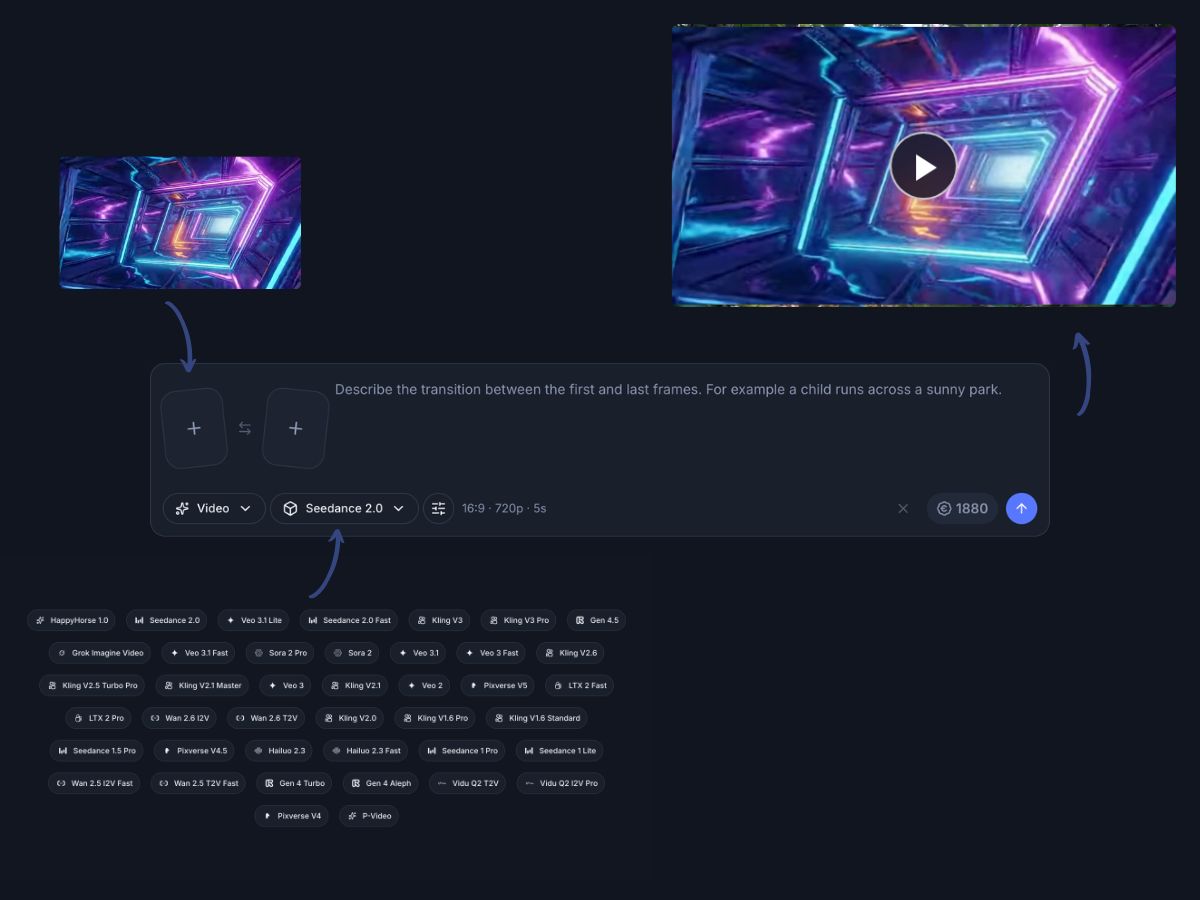
The generator covers the first prompt, the input mode, the credit estimate, and the next editing step without sending you into a second product.
Start with text only prompts across a broad model catalog when the idea is still flexible and you want fast model access in one place.
Use first frame, last frame, or reference image inputs on supported models when the result needs stronger visual control from the start.
Supported models can work from reference media or video edit paths when the goal is refining source footage instead of starting from nothing.
The generator UI shows a credit estimate for the selected model and settings so budget checks happen before you launch the run.
Veo, Kling, Sora, Seedance, Runway, Pixverse, Vidu, Wan, Hailuo, and more stay reachable from the same AI Video Generator workflow.
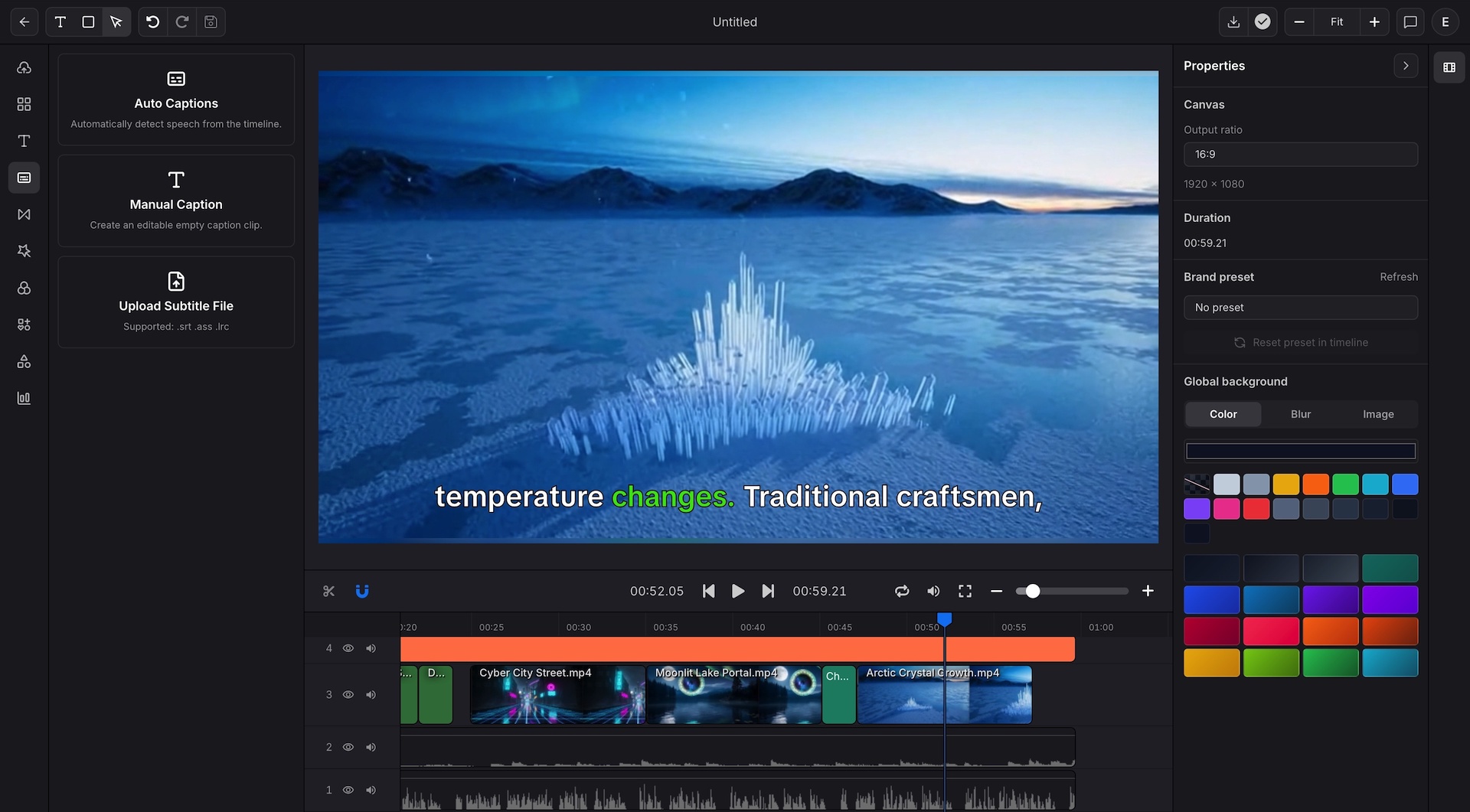
Move into the editor for custom sizes, brand packaging, captions, and export choices such as 4K and WebM when the job needs final polish.
Generation creates the first asset. Delivery still depends on editing, captions, brand control, and export. This workflow keeps those steps connected instead of splitting them across tools.
Generate with the model that fits the scene instead of forcing every job into one provider
Refine captions, timing, text, and visual packaging in the built in editor after generation
Keep brand and export decisions next to the source result instead of rebuilding them later
The strongest workflow is not only about model access. It is about what happens once the first render looks promising.
Model access
Use one generator surface to move between providers and input paths without learning a different workflow every time the job calls for another model family.
Browse a 32 model video catalog from one AI Video Generator
Start with text only prompts or switch to image guided input on supported models
Use reference media or video edit style paths where the model supports them
Review generated outputs without changing tools before the next step

Built in editor
A generated result becomes a working project where captions, trims, text, effects, and timing changes can happen without exporting into another app first.
Add auto captions or subtitle files after generation
Trim scenes and arrange media on a multi track timeline
Use text, effects, filters, stickers, and shapes in the same workspace
Keep refinement close to the original generated result

Brand and export
The finishing layer stays close to generation so teams can move from a promising render into a publish ready file with less back and forth.
Apply brand presets for logo, opener, and closer scenes
Choose custom canvas sizes beyond standard social ratios
Export for high resolution delivery up to 4K on supported workflows
Use WebM when the result needs transparent overlay delivery

Developer handoff
When a format stops being a one off test, the visual editor provides a path into repeatable developer workflows without rebuilding the structure elsewhere.
Use the visual workflow while creative review is still changing the scene
Keep the approved project structure ready for editor JSON export
Hand stable formats into API driven rendering when output volume grows
Reuse one approved format across campaigns, catalogs, or recurring updates

The workflow starts with model and input choice, then stays in one place through the edit and export steps.
Start with text, image guided, or supported video input modes, then pick the model and settings that fit the scene you need.
Review the result, then continue with captions, text, timing, effects, and brand details inside the built in editor.
Render the finished file for immediate use, or keep the project structure ready for editor JSON and API based production later.
The same workflow supports fast creative testing, polished brand delivery, and repeatable production once the format is proven.
Create shorts, explainers, hooks, and fast social videos with generation, captions, and finishing in one place.
Test creative directions across models, then finish with brand assets and export settings that match campaign needs.
Use generated scenes alongside chart video, captions, and narration when a report needs a stronger visual story.
Move from concept renders into a more precise timeline workflow without splitting generation and editing into separate tools.
Keep intros, outros, logo placement, and output formats aligned while publishing video across several channels.
Start visually, then move stable formats into editor JSON and API driven rendering once the workflow needs scale.
Different jobs need different strengths. This workflow keeps the major model families within reach without changing products.
Use Veo for polished text to video workflows, image guided variants on supported versions, and audio capable runs on newer options.
Use Kling when the project benefits from long standing image guided workflows, first frame or last frame control, or current mainstream coverage.
Use Sora for teams that want OpenAI video options inside the same AI Video Generator workspace instead of a separate tool chain.
Use Seedance for flexible ratios, broad duration choices, and current ByteDance video options in the same model catalog.
Use Runway when the job leans toward source footage refinement and supported video edit style workflows in the generator.
The catalog also covers Pixverse, Vidu, Wan, Hailuo, LTX, and additional providers so the workflow can keep up with more than one model family.
These points come directly from the current product surface and editor capability documents.
The current video generator catalog includes 32 video model entries.
The workflow supports text prompts and model dependent image guided or video based input paths.
The editor supports custom canvas sizes beyond standard social aspect ratios.
The built in editor supports high resolution export and WebM for transparent overlay delivery.
Use Indream to generate with major models, refine in the built in editor, and keep a clean path to export, editor JSON, and API workflows when the format is ready to scale.
See the editing workflow for captions, timeline control, charts, brand settings, and export polish.
See how chart scenes and transparent overlay exports fit alongside generated video workflows.
See how approved project structures can move into editor JSON and API driven rendering flows.